What is a widget?
Public website widgets are small snippets of code meant to be embedded in a public website to display information from the member portal. The first widget is a meeting & events listing.
How to add the widgets to your public website:
The instructions below will be for the MemberDay website builder, but the widget should work in most website builders.
Go to the Meeting & Events screen in the member portal and click the "gear" in the upper right and choose "Public Website Widgets".
On the "Public widgets" screen click the "Copy Code" button for the desired widget. It will copy code that looks something like this:
Types of widgets:
Meeting & Events List - Displays the upcoming meetings & events in a list format
Meeting & Events Calendar - Displays meetings & events in a calendar view
File Manager - Displays a selected public folder. Good for things like newsletters or club documents the public should access. IMPORTANT: The folder you want to display must be set as public in the Files area for it to be available

Go to the public web page that you want the meeting & events list shown. You'll need to be logged in as an admin. Click the "+Content" button on the left and click "Apps". Choose "Custom HTML Code".
Paste the snippet [of code] there then click "Save".
NOTE: This should be the only content block on the page, or at least the bottom content block.IMPORTANT!! Now you need to select the meetings and events that you would like to display publicly on the webpage. There might be private club meetings and events that you choose not to show on the public website.
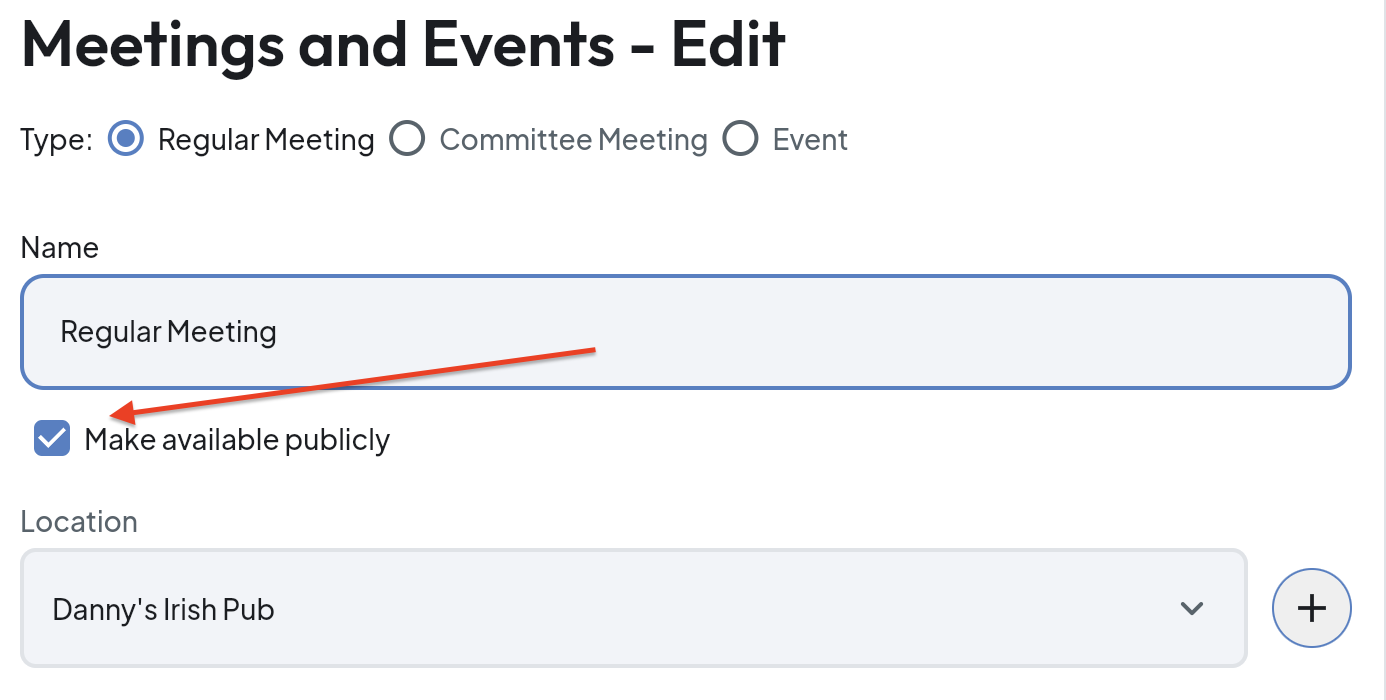
To select the meetings and events to show on the public website, go to the member portal and go to the Meeting & Events list. For each meeting or event to display on the public website, edit the meeting or event and then indicate "Make available publicly" (see below). For new meetings and events, you will be able to set the show publicly feature when creating the instance.
*This article also resides in the Member Portal Knowledge Base.