

There may be times when you to hide a sub-page from the menu of your website.
Why would you want to hide a subpage?
One reason to hide a subpage is that you are simply working on a subpage and you do not want to have it shown on your website yet.
Another reason to hide a subpage is if your club runs an event once a year in June, after the event you might want to hide the page until before the event the following year. At that point you can use that page as a template, simply update the page with current information. This is a quick and easy way to include recurring events in a consistent format each year.
Hide a Webpage or Sub-page
Click "Settings" in the left menu. The menu of your website will show in the window.
To the left of each menu item you will see an icon:
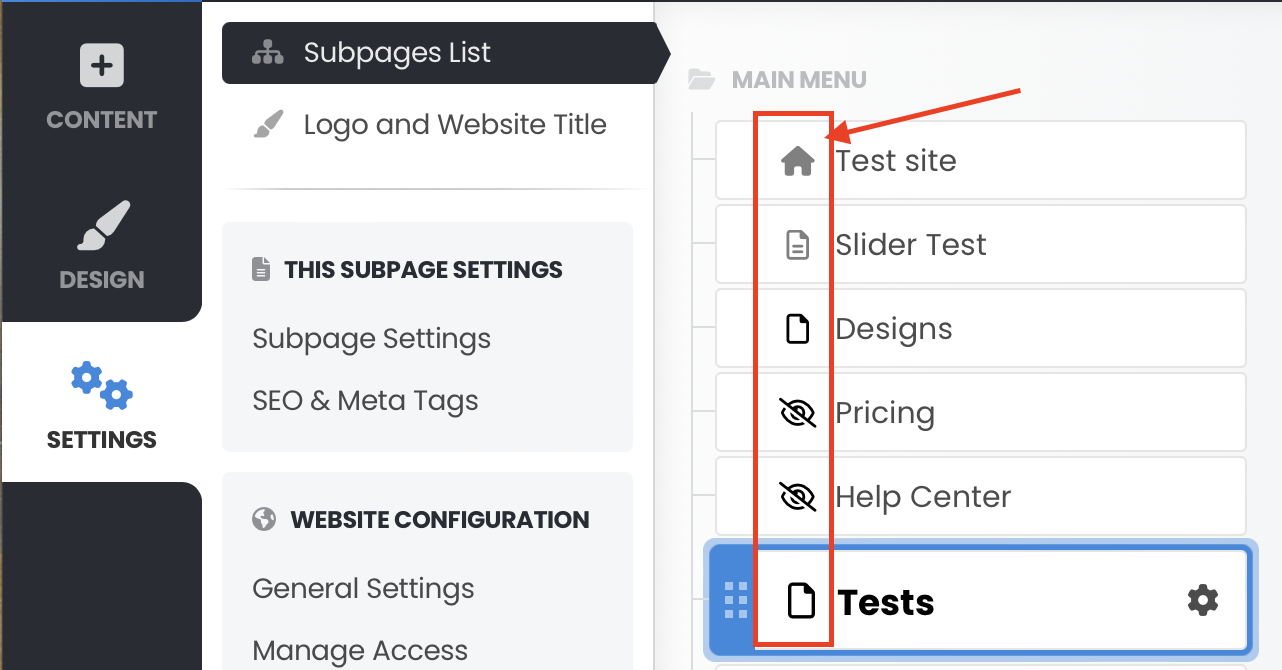
The "house" icon signifies the primary homepage of the website.
-Click the icon until you see the "Eye with a slash" icon. This shows that the page is hidden from view.
-Click "Save Changes".
Unhide a Webpage or Sub-page
-To unhide the sub-page, click the icon until the "Page with 2 lines" icon shows.
-Click "Save Changes".
Menu Text Settings
There are 3 different settings to show the menu sub-page text in the menu:
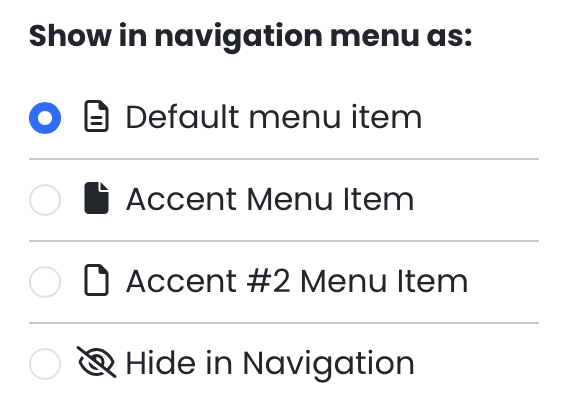
The Default menu item will show as "Regular Text".
The "Accent Menu Item" and Accent #2 Menu Item' option will simulate a button. You can change the option styles, if needed, by clicking "Design", then "Menu Designer" in the left navigation menu.
To Delete a Subpage
To delete a subpage completely (rather than hide a subpage)
-Click "Settings" in the left menu.
-Click the name of the subpage you want to delete.
-To the right of the name of the subpage, hover over the the "Gear" icon. Additional options will show. Click the "Trash" icon to "Remove the subpage".
Here is a short video that will also help you see how to hide a subpage:
https://www.youtube.com/watch?v=5Dz_mMtfvIY