

Save a Custom Content Block for future use:
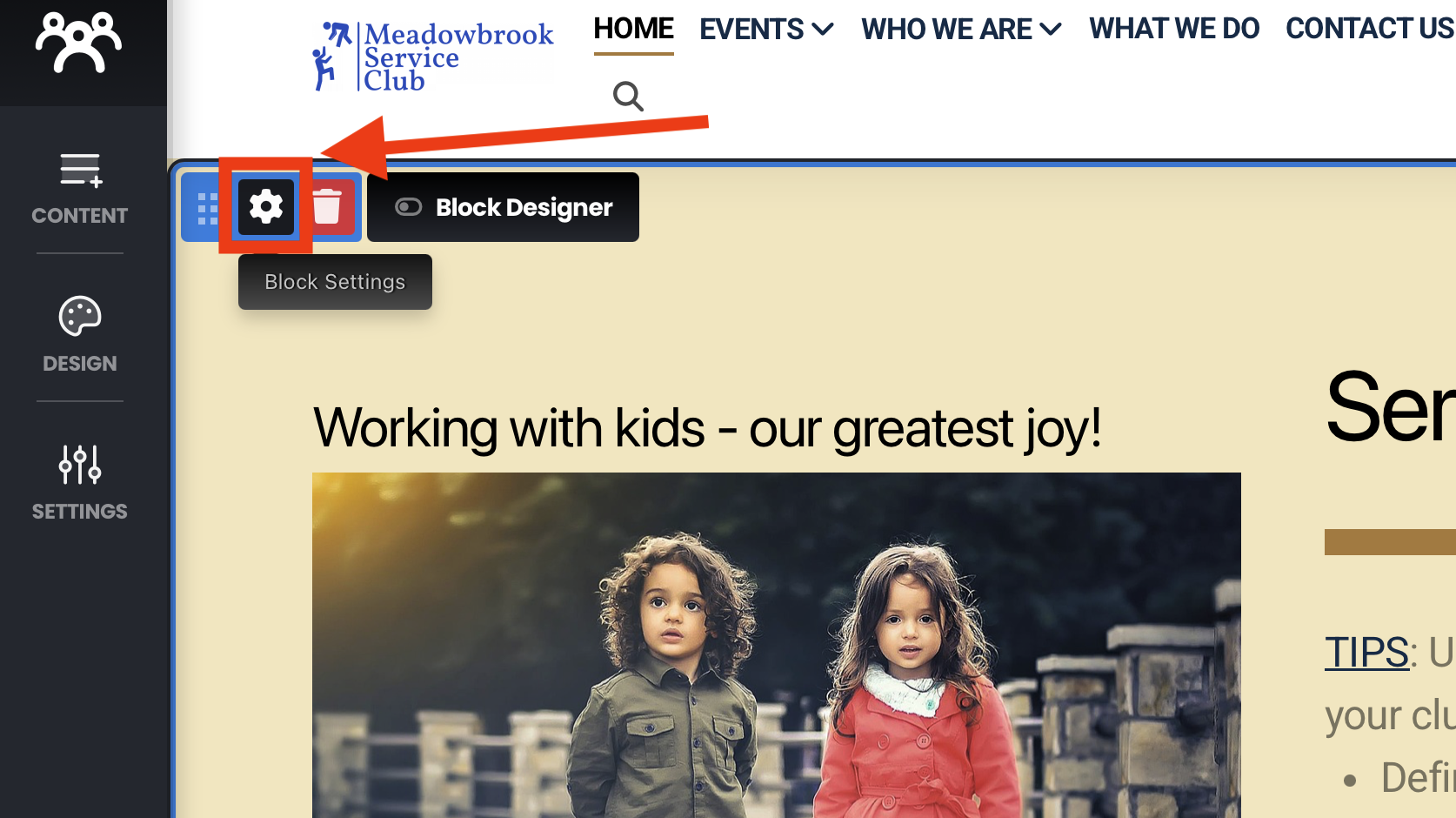
Hover over the upper left corner of the content block you want to save, then click the "Gear" icon.
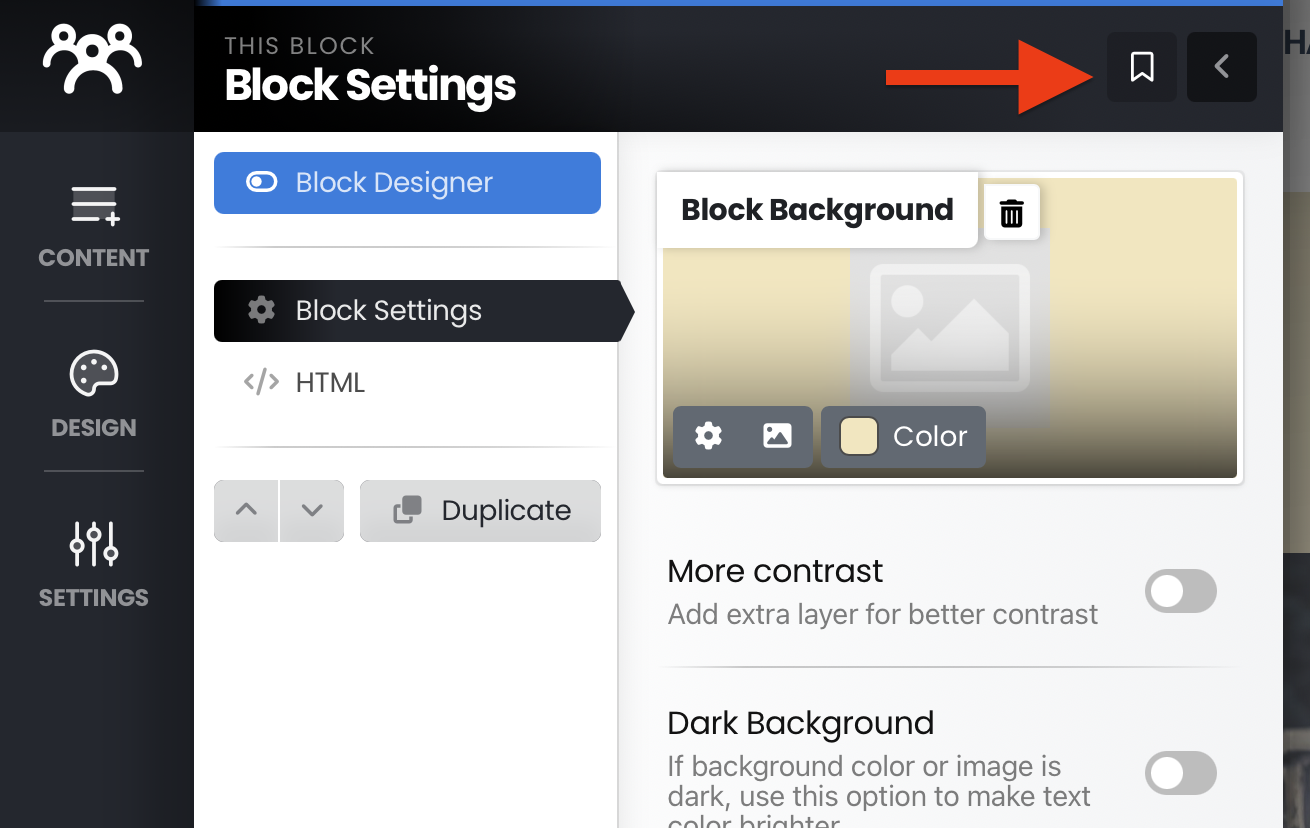
Click the Bookmark icon at the top of the menu that shows:
When you need the saved custom content block, click the "Content+" button in the left menu, then click the "Saved blocks" option at the bottom of the menu. A visual of your saved content blocks will show and you can easily and quickly select the block you need.
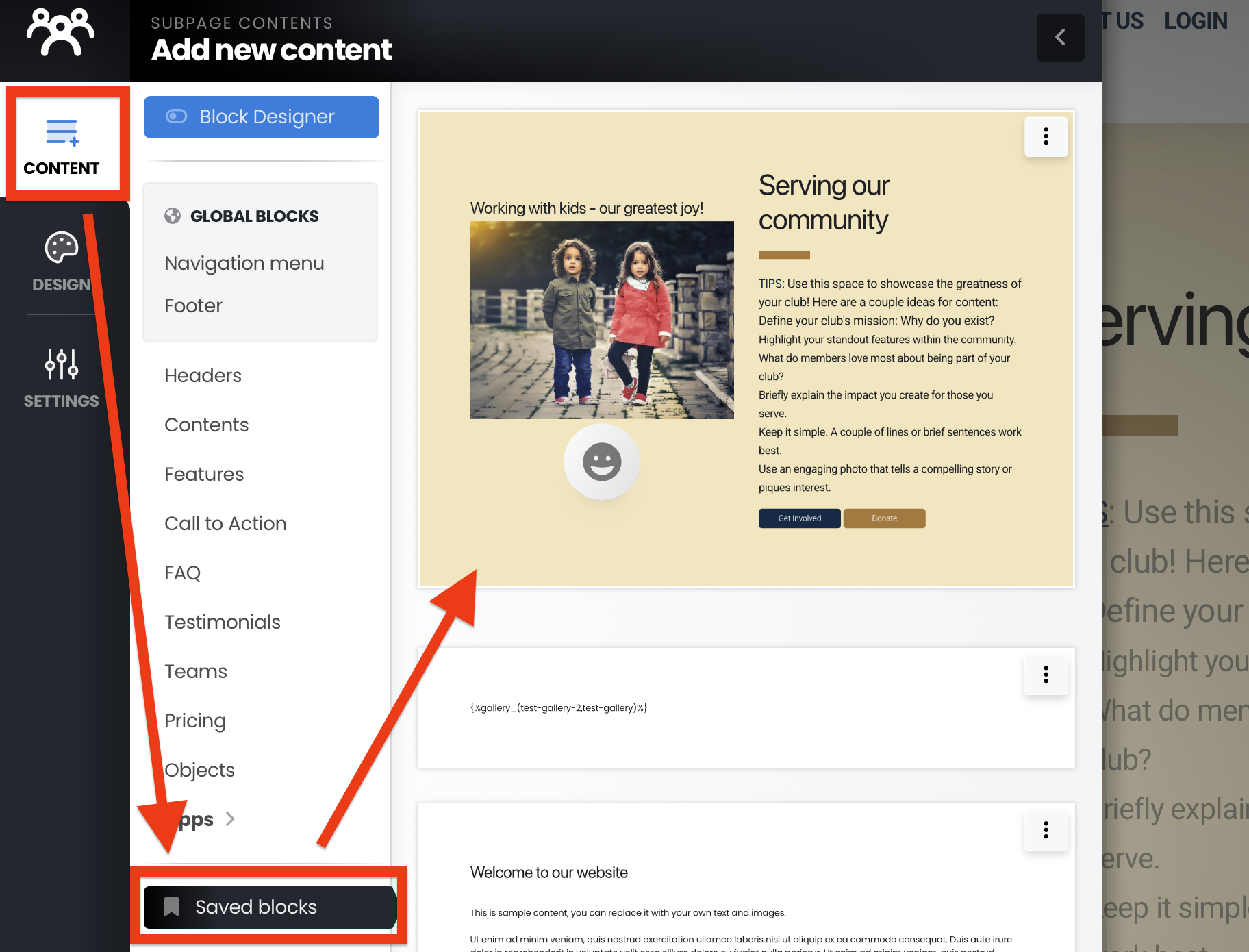
Note: To delete a saved content block, click the "3 dots" in the upper right of the displayed content block and choose "Remove this item".